Table of Contents
- Common Causes of a Black Screen on iPhone
- How to Fix iPhone Black Screen (Phone Is On)
- 1. Force Restart the iPhone
- 2. Use iTunes or Finder (Recovery Mode) to fix Black Screen on iPhone
- 3. Try a Screen Mirroring Tool
- 4. Check iPhone for Physical Damage
- 5. Visit Apple Support to repair
- Preventive Tips for Black Screen on iPhone
- Conclusion
It’s a frustrating experience—your iPhone is on, but the screen remains black. You might hear notifications, vibrations, or sounds, but you can’t see anything. This issue is more common than you think and can occur due to software glitches, display problems, or even hardware faults. Here’s A force restart can many times fix minor software glitches:the possible causes and the most effective fixes.
Common Causes of a Black Screen on iPhone
- Software Crash
- A system crash may make the screen go black even though the phone is still functioning in the background. no issue in display connector, Screen, Battery.
- Display Connector Issue
- The internal display cable may be loose or disconnected, especially after a drop or impact.
- Faulty Screen
- The screen itself might be damaged or malfunctioning due to water exposure or age.
- Battery Drain or Overheating
- Sometimes, extreme overheating or a battery malfunction may cause the screen to turn black while the phone is technically still on.
- Third-party App Conflicts
- A buggy app or recent update could also interfere with screen rendering.
This solution work on following models.
| Year | iPhone Models Released |
|---|---|
| 2007 | iPhone (1st Generation) |
| 2008 | iPhone 3G |
| 2009 | iPhone 3GS |
| 2010 | iPhone 4 |
| 2011 | iPhone 4S |
| 2012 | iPhone 5 |
| 2013 | iPhone 5c, iPhone 5s |
| 2014 | iPhone 6, iPhone 6 Plus |
| 2015 | iPhone 6s, iPhone 6s Plus |
| 2016 | iPhone SE (1st Gen), iPhone 7, iPhone 7 Plus |
| 2017 | iPhone 8, iPhone 8 Plus, iPhone X |
| 2018 | iPhone XR, iPhone XS, iPhone XS Max |
| 2019 | iPhone 11, iPhone 11 Pro, iPhone 11 Pro Max |
| 2020 | iPhone SE (2nd Gen), iPhone 12, 12 Mini, 12 Pro, 12 Pro Max |
| 2021 | iPhone 13, 13 Mini, 13 Pro, 13 Pro Max |
| 2022 | iPhone SE (3rd Gen), iPhone 14, 14 Plus, 14 Pro, 14 Pro Max |
| 2023 | iPhone 15, 15 Plus, 15 Pro, 15 Pro Max |
| 2024 | (Expected) iPhone 16, 16 Plus, 16 Pro, 16 Pro Max |
| 2025 | (Rumored) iPhone 17, 17 Pro, 17 Pro Max, 17 Ultra |
How to Fix iPhone Black Screen (Phone Is On)
1. Force Restart the iPhone
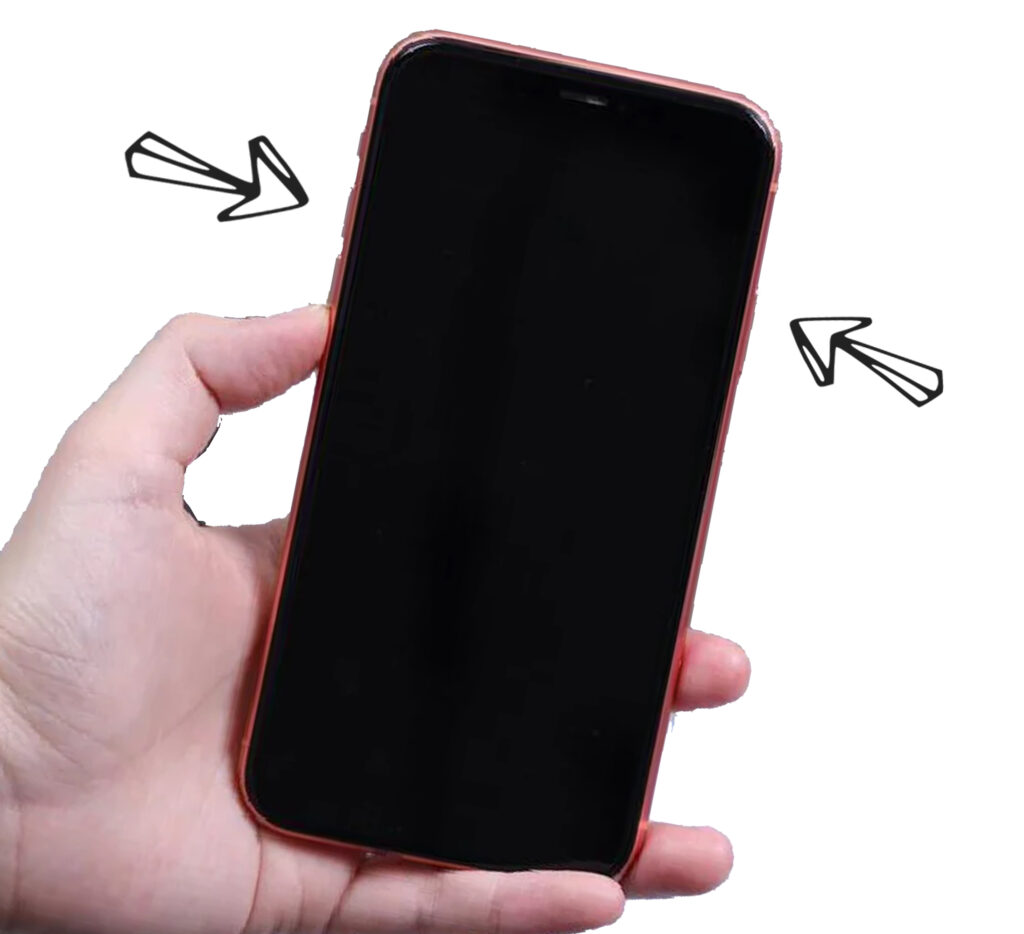
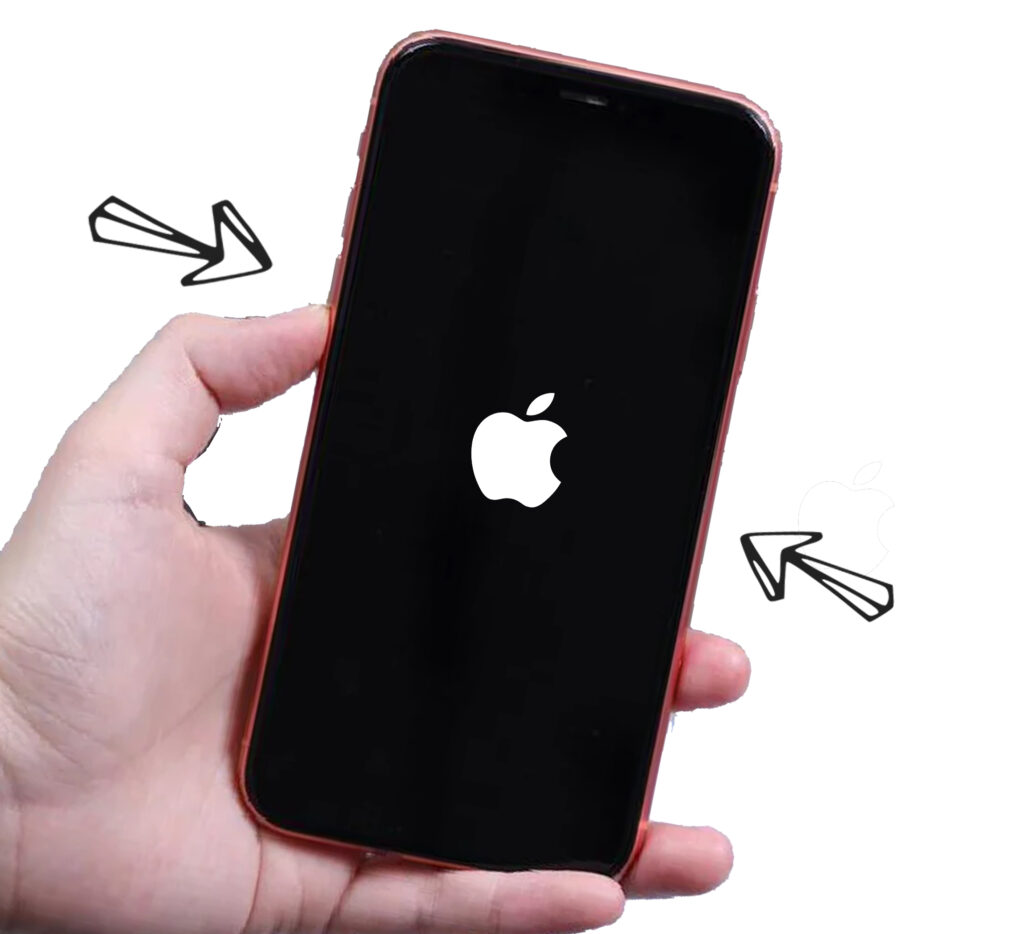
A force restart can often fix minor software glitches:
- iPhone 8 or later: Quickly press and release the Volume Up, then Volume Down, then press and hold the Side button until you see the Apple logo.
- iPhone 7 or 7 Plus: Hold the Volume Down with Power button together 10 seconds until the Apple logo appears.
- iPhone 6s or earlier: Hold both the Home and Power buttons until the screen lights up.
2. Use iTunes or Finder (Recovery Mode) to fix Black Screen on iPhone
If a force restart doesn’t work:
- Connect your iPhone to a computer.
- Put it into Recovery Mode.
- Restore or update the software via iTunes (Windows/macOS Mojave) or Finder (macOS Catalina and above).
3. Try a Screen Mirroring Tool
Use a tool like QuickTime (Mac) or third-party software to mirror your iPhone screen to a computer. If the display appears there, your screen hardware may be faulty.
4. Check iPhone for Physical Damage
Search the device for cracks or signs of damage. If dropped recently, the display connector may need re-seating by a technician.
5. Visit Apple Support to repair
If all of the above works, contact Apple Support or visit a service center. If your iPhone is under warranty or AppleCare+, you may be eligible for a free repair or replacement.
Preventive Tips for Black Screen on iPhone
- Avoid installing untrusted apps.
- Use a strong case to protect from drops.
- Avoid overcharging or using cheap charging cables.
- Update iOS regularly to avoid bugs and crashes.
Conclusion
A black iPhone screen while the phone is still on can be scary, but in many cases, it’s fixable. Start with a force restart, try recovery mode, and if needed, seek professional repair. Acting quickly can help prevent permanent damage and save data.